User guide
Crypto Masternode Monitor asks each network, at regular intervals, how your nodes are doing. It keeps the answers on your phone, shows them on one screen and notifies you when something changes. There is nothing to create and no account to log into: the app is useful within a minute of installing it.
Adding a masternode
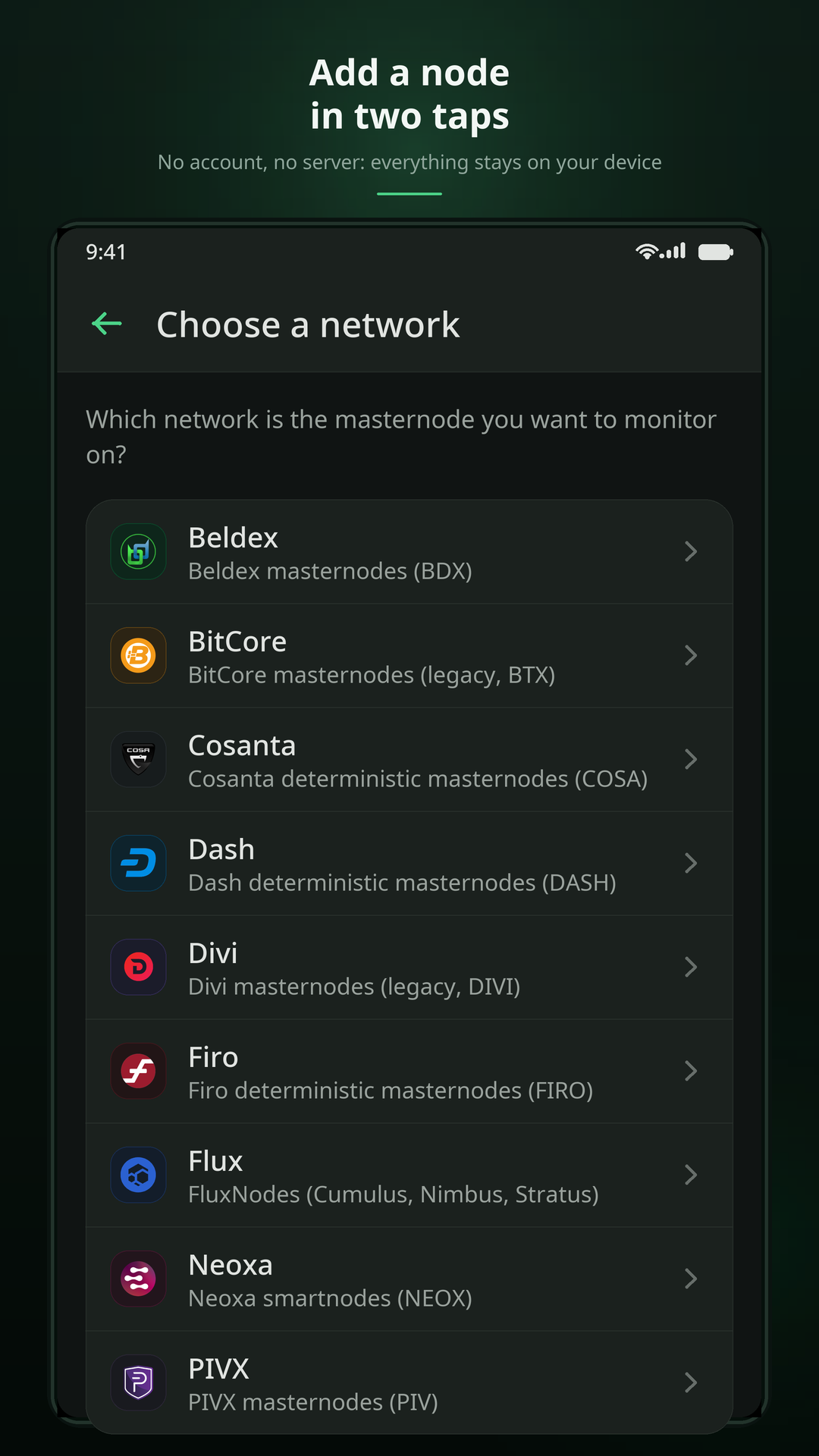
Adding a node takes two steps: choose the network, then give the node's public identifier. The two steps are separate on purpose — the identifiers of several networks are indistinguishable from one another (64 hexadecimal characters, in all cases), so no app could guess the network for you.
- On the home screen, tap +.
- Pick your network from the list.
- Paste the identifier, or tap the QR icon to scan one.
- Give the node a name you will recognise — it is yours, stored only on your device.
Which identifier?
It depends on the network family, and the field's placeholder always tells you which one is expected:
- Deterministic networks (DIP3) — the
proTxHashof the registration transaction, 64 hexadecimal characters. - Legacy networks — the collateral outpoint, in
txhash-indexform. - Beldex — the master node's public key.
- Flux — the collateral outpoint of the FluxNode.
On most networks you can also search by payout address, and on a few by IP address. The app looks your node up in the network's own list before adding it, so a typo is caught immediately rather than showing up as a permanently offline node.
proTxHash, which is exactly why the app validates your input against the
network's public list locally, and never sends it to a server-side search filter.
Reading the dashboard
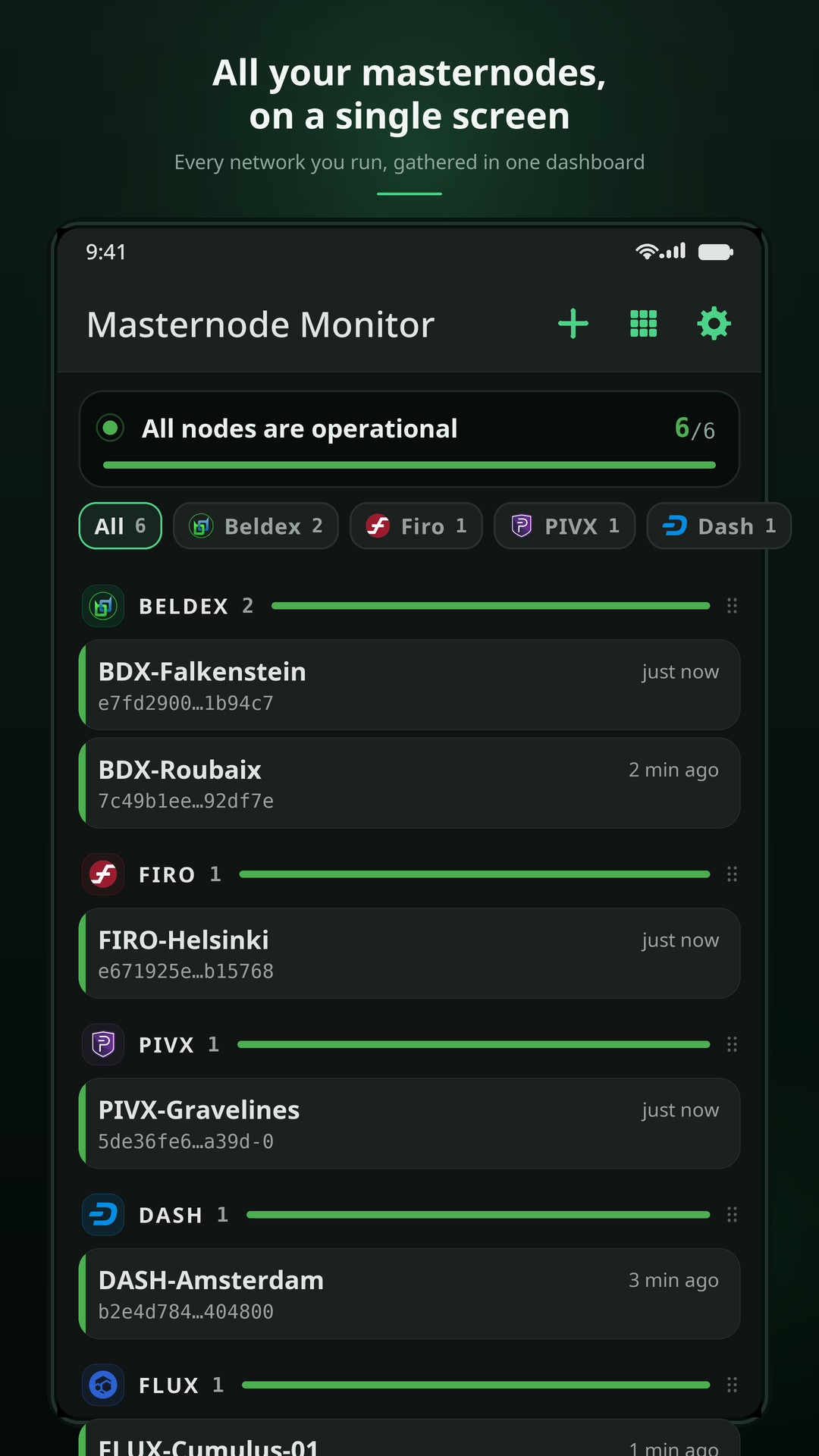
One screen holds every network. Nodes are grouped by network, and each group carries its own summary bar.
- The banner at the top gives the one answer you usually want: is anything wrong? It turns red as soon as a single node has a problem, whichever network it belongs to.
- The coloured edge of a card shows that node's status, not its network — that is what lets you spot the one bad node while scrolling a long list.
- Pending is not a problem. A node that has just been registered, or that the network has not confirmed yet, is shown as pending and triggers no alert.
- List or grid. The button in the header switches between one card per row and three-column tiles. Grid fits far more nodes on screen; list gives each one more room.
- Filter by network from the row of logos under the banner.
- Rearrange with a long press. Hold a card to move a node within its own network, or a network header (marked by its ⋮⋮ handle) to change the order of the networks. Your arrangement is saved.
The detail screen
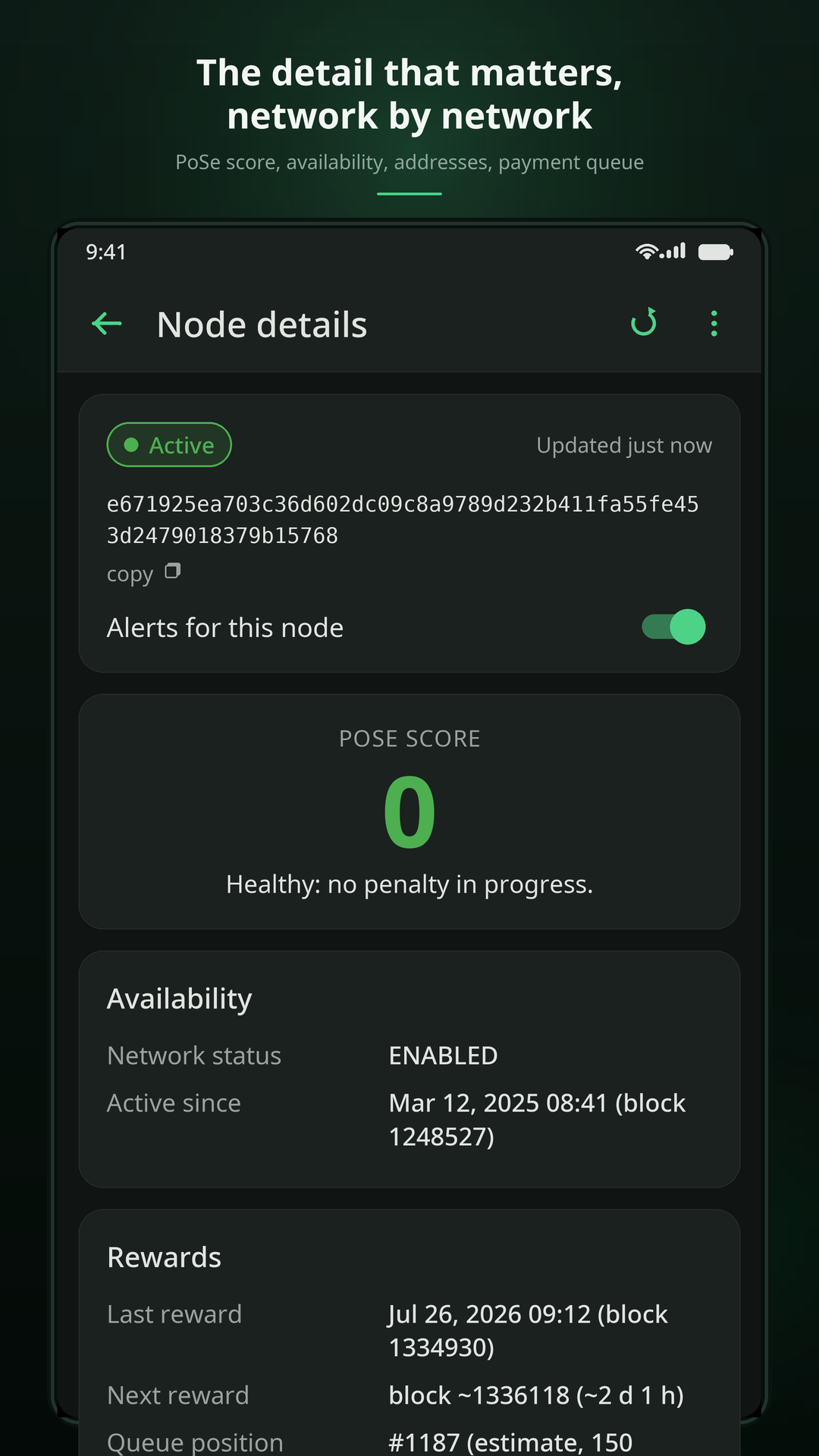
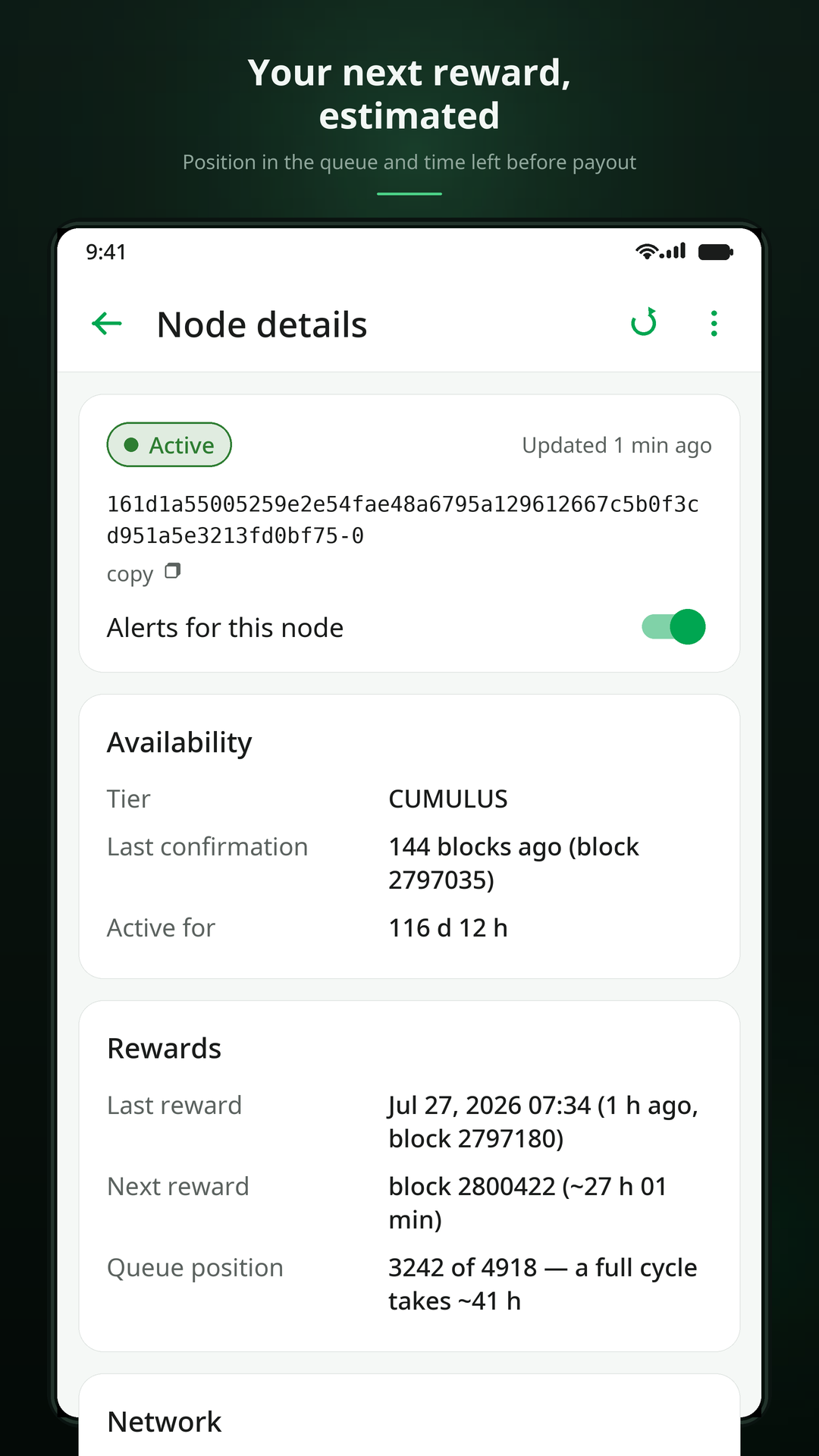
Tap a node to open it. What you see depends on what the network actually publishes — the app shows a field only when it has a real value behind it, rather than a label with a blank next to it:
- Status and last update, always.
- Last activity: the last proof of life, or the last payment, depending on the network.
- Reward queue: position and an estimate of the next reward — only where the network publishes enough for that estimate to mean something. Where it does not, the app says so instead of inventing a delay.
- Addresses (owner, voting, collateral) when the source exposes them.
- Acknowledge: the button in the header of a node that currently has a problem. It silences repeat alerts for that specific problem, and lifts itself automatically the moment the status changes again.
Notifications and alerts
Alerts fire on a change of state: a healthy node that breaks, and a broken node that recovers. A node that stays broken does not re-notify you every few minutes.
Three settings keep the volume sane, under Settings → Notifications:
- Minimum delay between two alerts for the same node (one hour by default).
- Maximum alerts per problem (three by default; can be set to unlimited).
- Acknowledge, on the node's own screen, for a problem you already know about.
There is exactly one exception to the delay: the alert that tells you a node has recovered, when its failure was announced. Warning you about a breakdown and never telling you it is over would be worse than the spam avoided.
The app also watches the node software releases of each network you monitor, at most once a day, and tells you when a new version is published. The very first check is never notified — otherwise installing the app would fire an alert for every network at once.
Networks and data sources
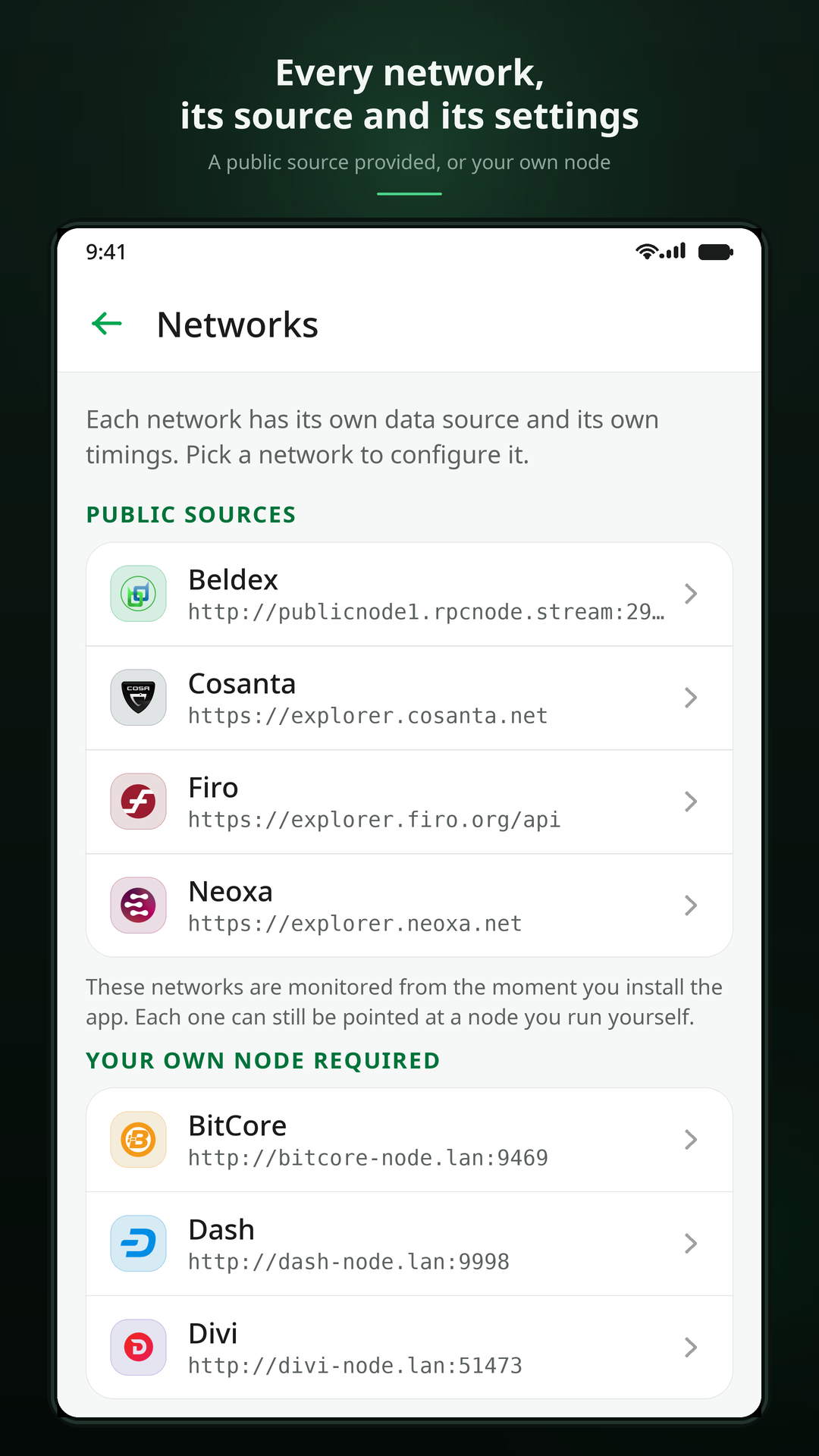
Every network has its own data source: either an official public API, or the RPC address of a node you provide. Settings → Networks lists them all, each subtitled with the source it is currently using — it is the one place where an unconfigured network is visible without opening it.
Networks with no official public source start out empty, on purpose: the alternative would be to route your traffic through a commercial gateway you never chose. Set them up once, in a couple of minutes, following the RPC endpoint guide.
A network with no address is not an error. Its requests fail like a network outage, so the network simply goes offline and your nodes keep their last known state. No node is ever declared "deregistered" because a source was unreachable.
Backup and restore
Settings → Backup exports your monitored nodes — and, if you tick the box, your
settings — to a single .json file, through the system share sheet. Restoring reads
that file back on any device, Android or iOS: the format is identical on both.
- Nodes already being monitored are left untouched; the import only adds what is missing.
- Importing settings replaces your current settings.
- RPC passwords are never written to the file. They live in the system keystore, outside the settings the app can export. Only RPC URLs travel in the backup.
Settings
- Language — seven languages; the change applies immediately.
- Theme — light, dark, or follow the system.
- Refresh — how often to check while the app is open, and in the background.
- Notifications — the master switch, node releases, the two anti-spam guardrails and a button to send yourself a test notification.
- Networks — the data source, freshness threshold and block time of each network.
- Docs & support — this documentation, opened in your language, and a contact form that hands your message to your own mail app.
Still stuck? The FAQ covers the questions that come up most often, and support tells you how to reach us.